What your agents can do in Stripe
Ask in your own words. The agent finds the right records and answers with the numbers, and it is told to change nothing unless you ask.
Customers
Find a customer by email or name, see their details and balance, and add or update customers.
What has Northwind paid us this year?
Subscriptions
See who is on which plan and when they renew, and start, change or cancel a subscription.
Which subscriptions renew next week?
Invoices
Find what is unpaid, draft invoices and their items, then finalize, pay or void them.
Show me every open invoice over $1,000
Payments and refunds
Check a payment's status and why it failed, capture or cancel it, and issue refunds.
Why did the payment from Acme fail?
Products and prices
Look up your catalog, create products and prices, and archive a price you no longer sell.
Add a yearly price of $990 to the Pro plan
Checkout and credit notes
Create a Stripe-hosted checkout page to send a customer, and issue or void credit notes.
Make a checkout link for one seat
How to connect
From here to a bot that knows your Stripe account
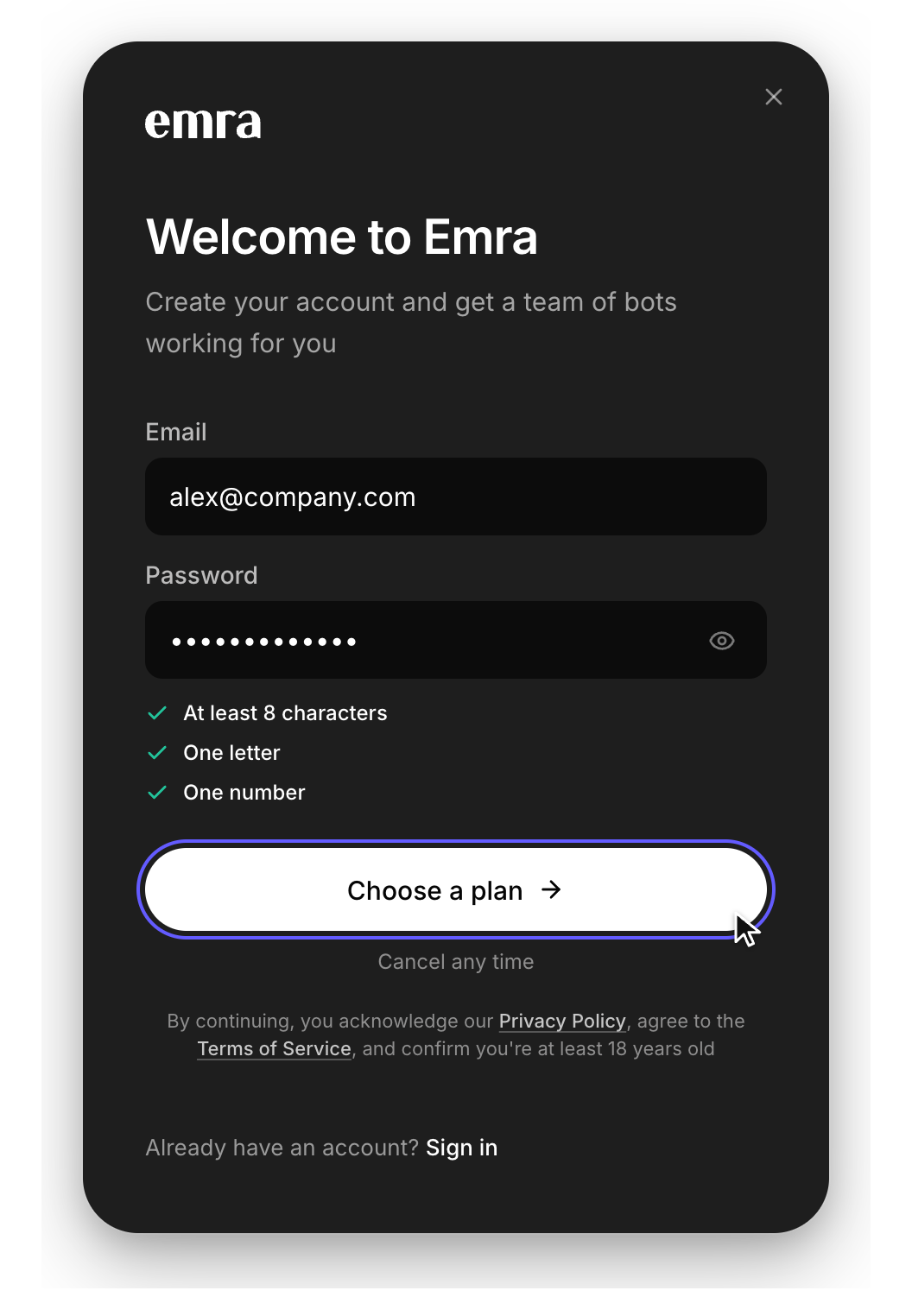
It takes a couple of minutes, and you only do it once. After that, every bot you add it to can work in Stripe for you.
- 02
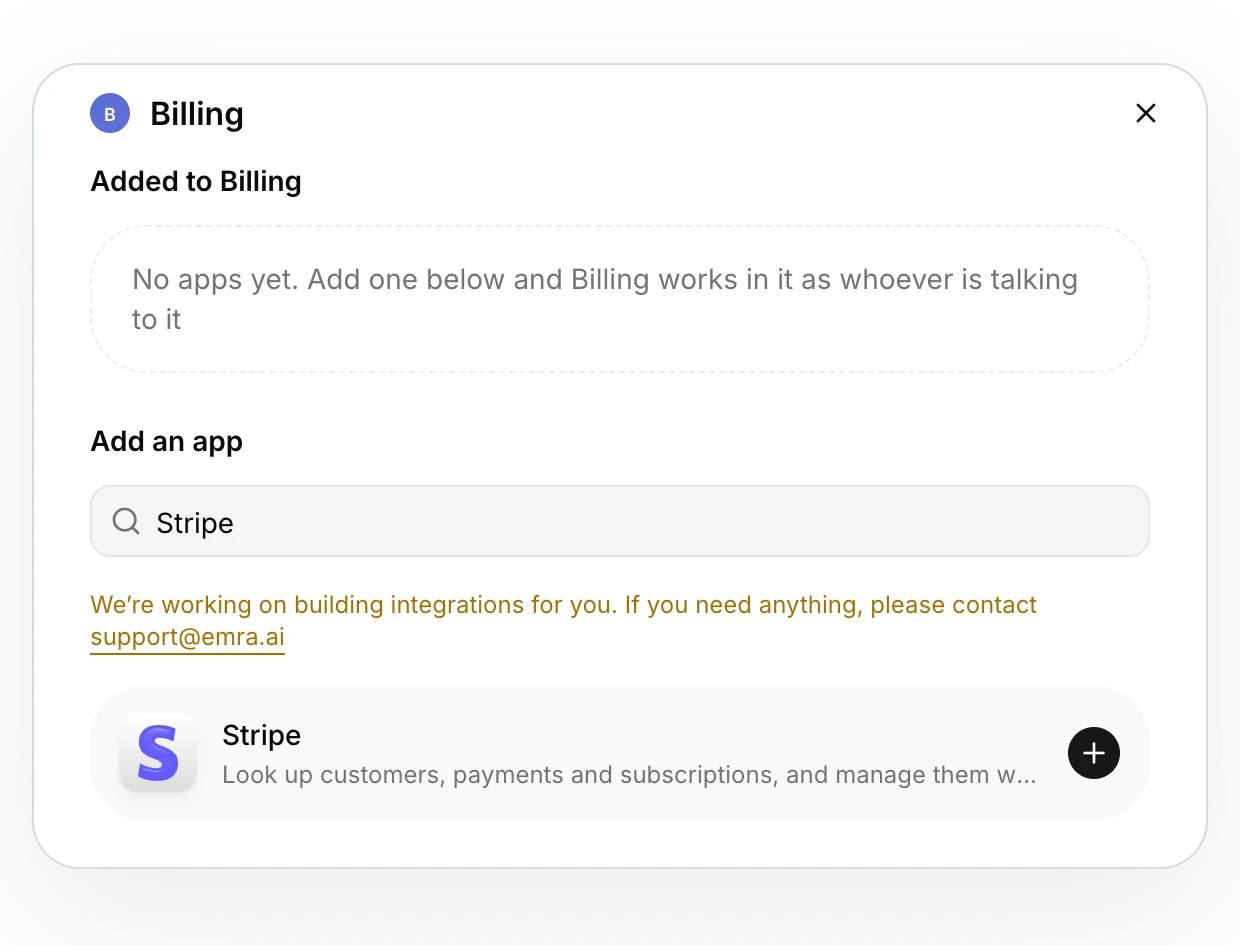
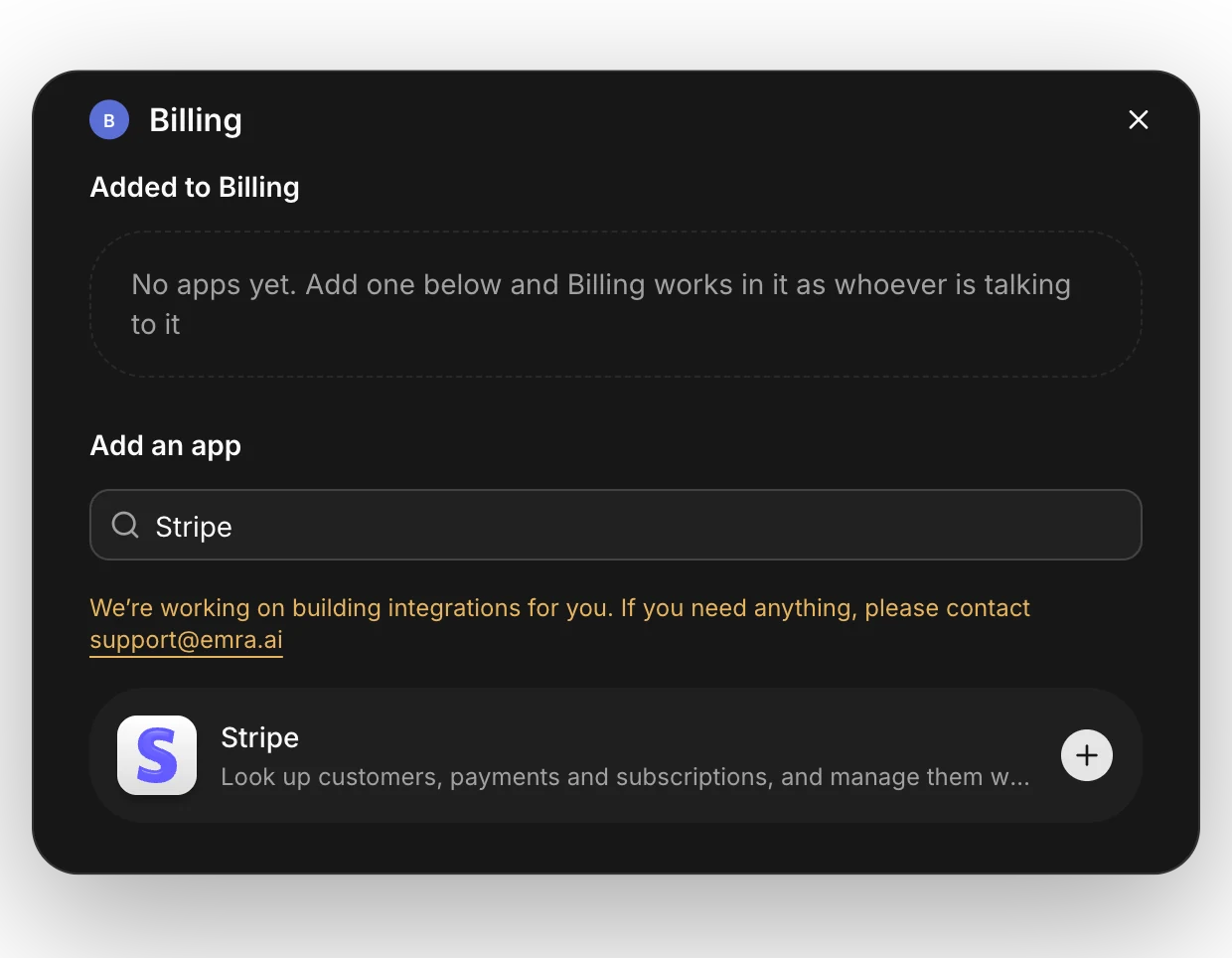
Open your bot’s apps and add Stripe
Pick the bot you want working in Stripe, such as a Billing bot. Click + under Apps in its settings, or Connect apps beside its name in a chat, then find Stripe and click + to add it.
- 03
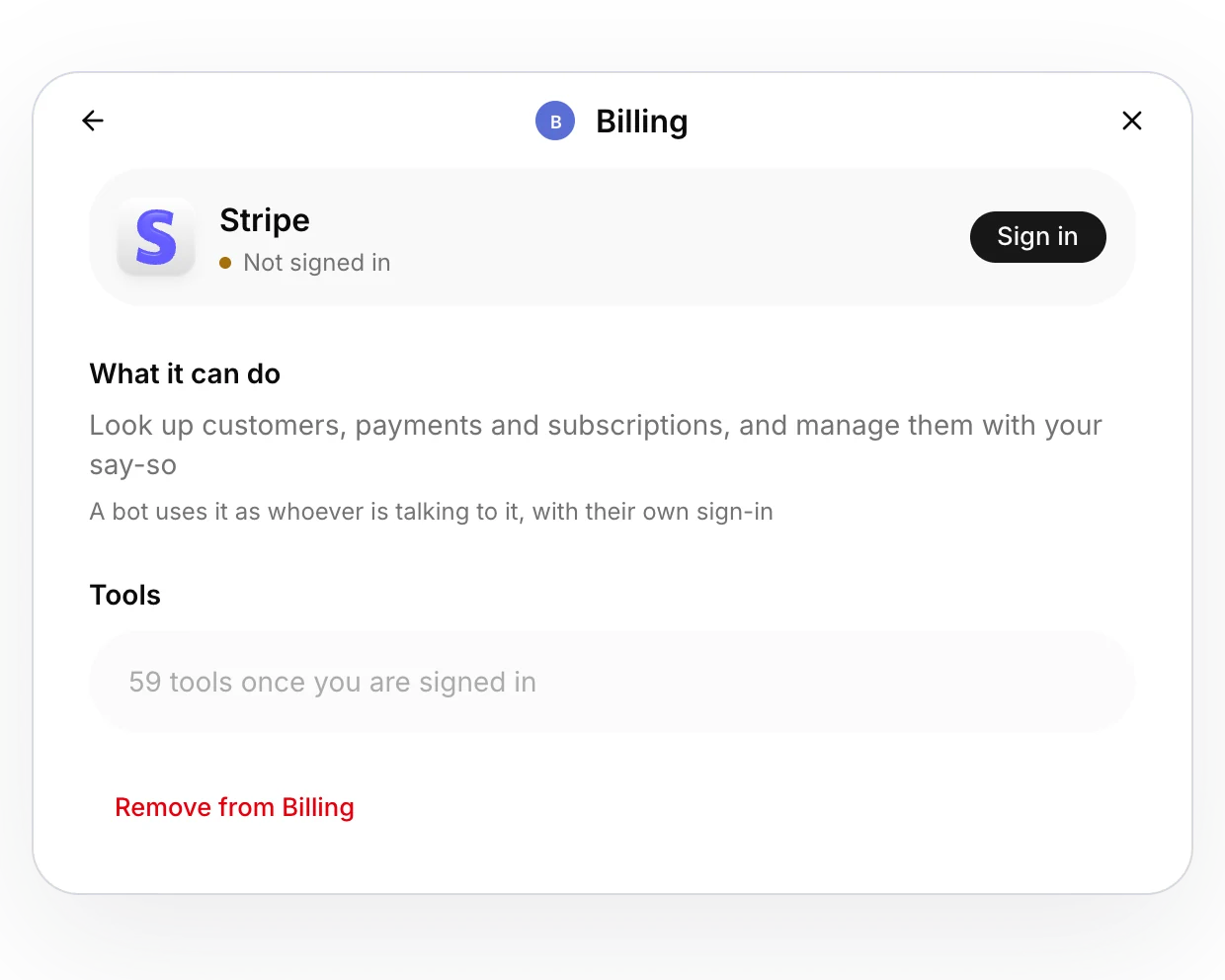
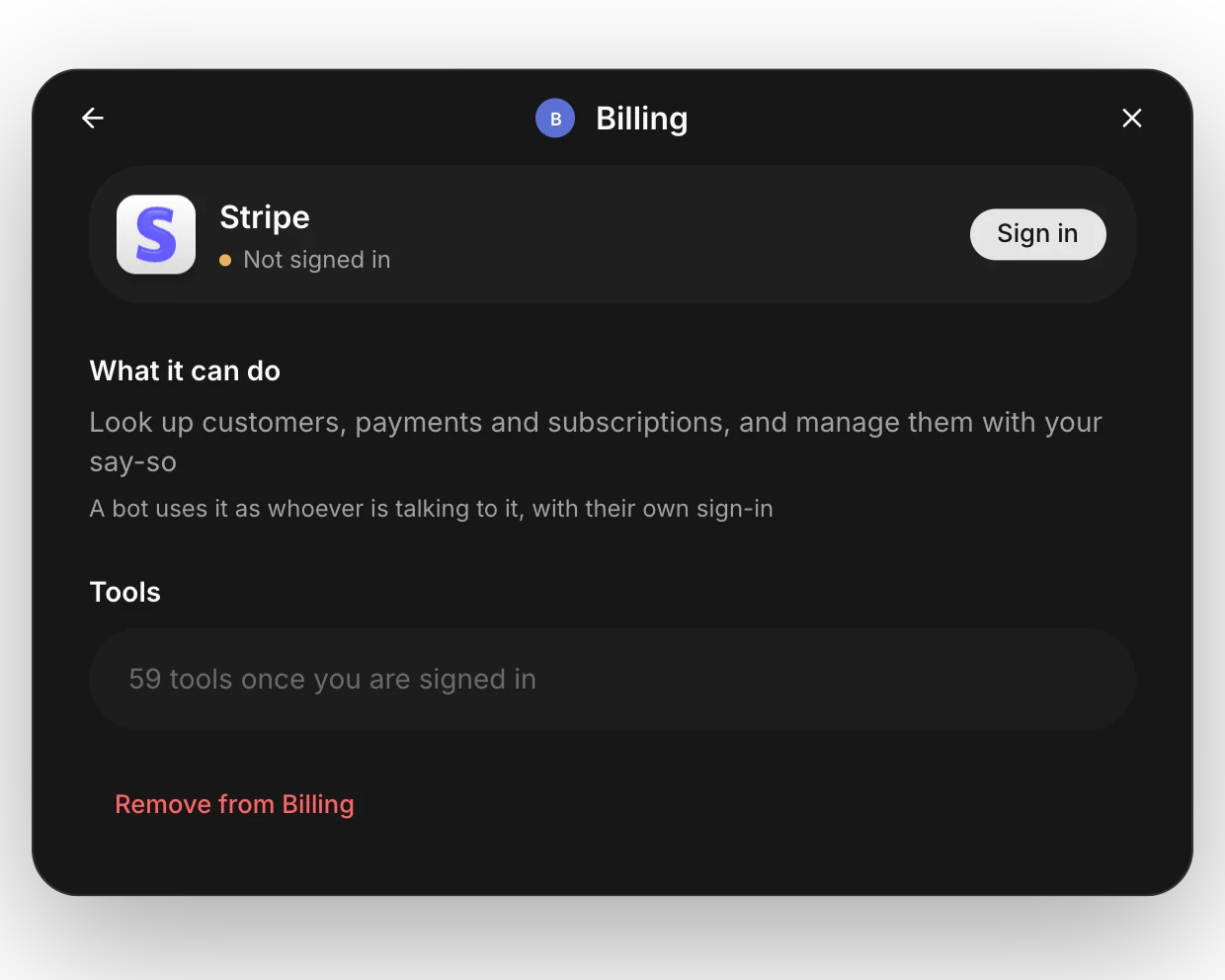
Click Sign in, then install in Stripe
Stripe opens in a new tab. Choose your account, look over what Emra asks to do, and install. Back in Emra, the card turns to signed in by itself.
Stripe shows exactly what Emra may read and change before you install. Nothing is shared until you approve it.
- 04
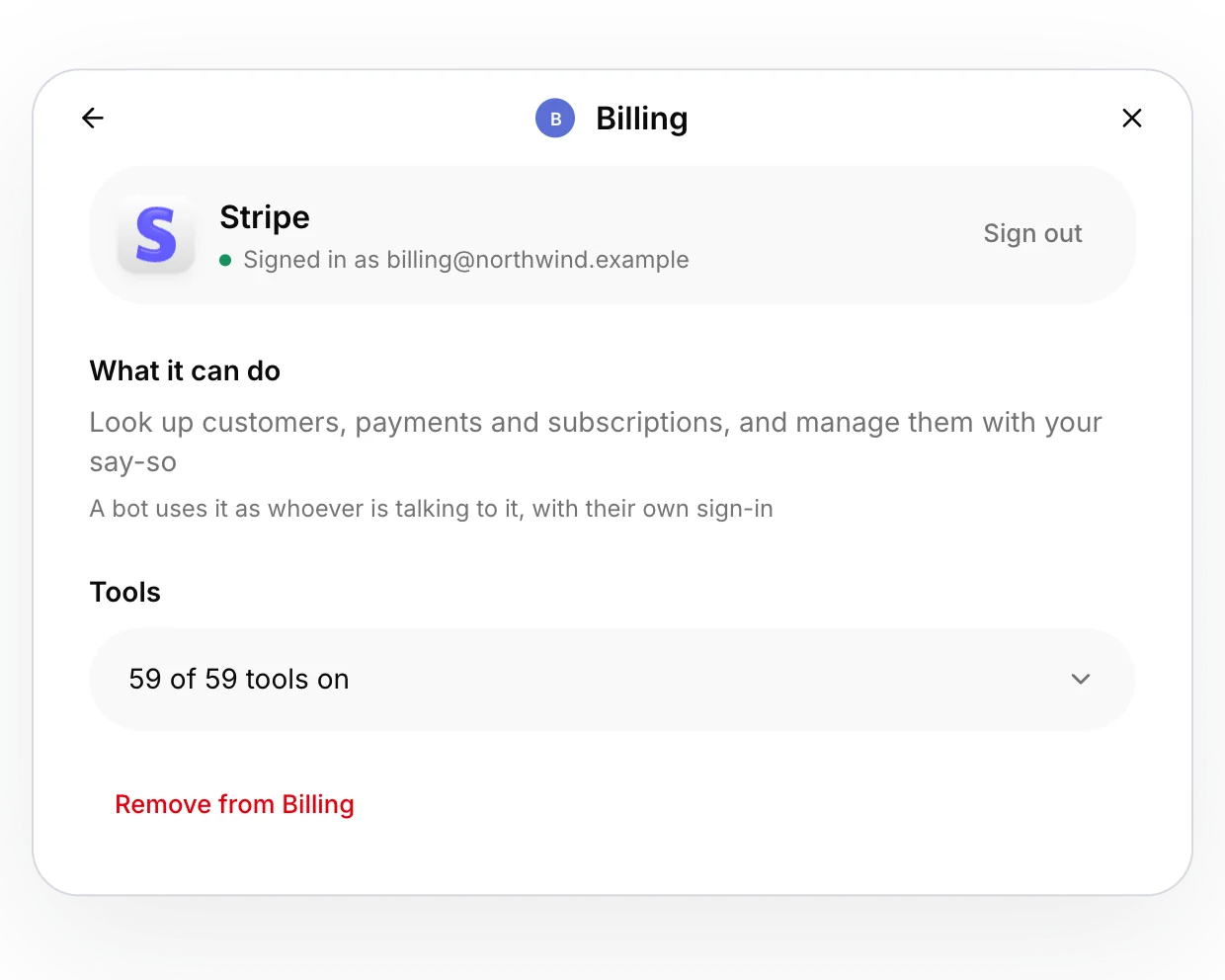
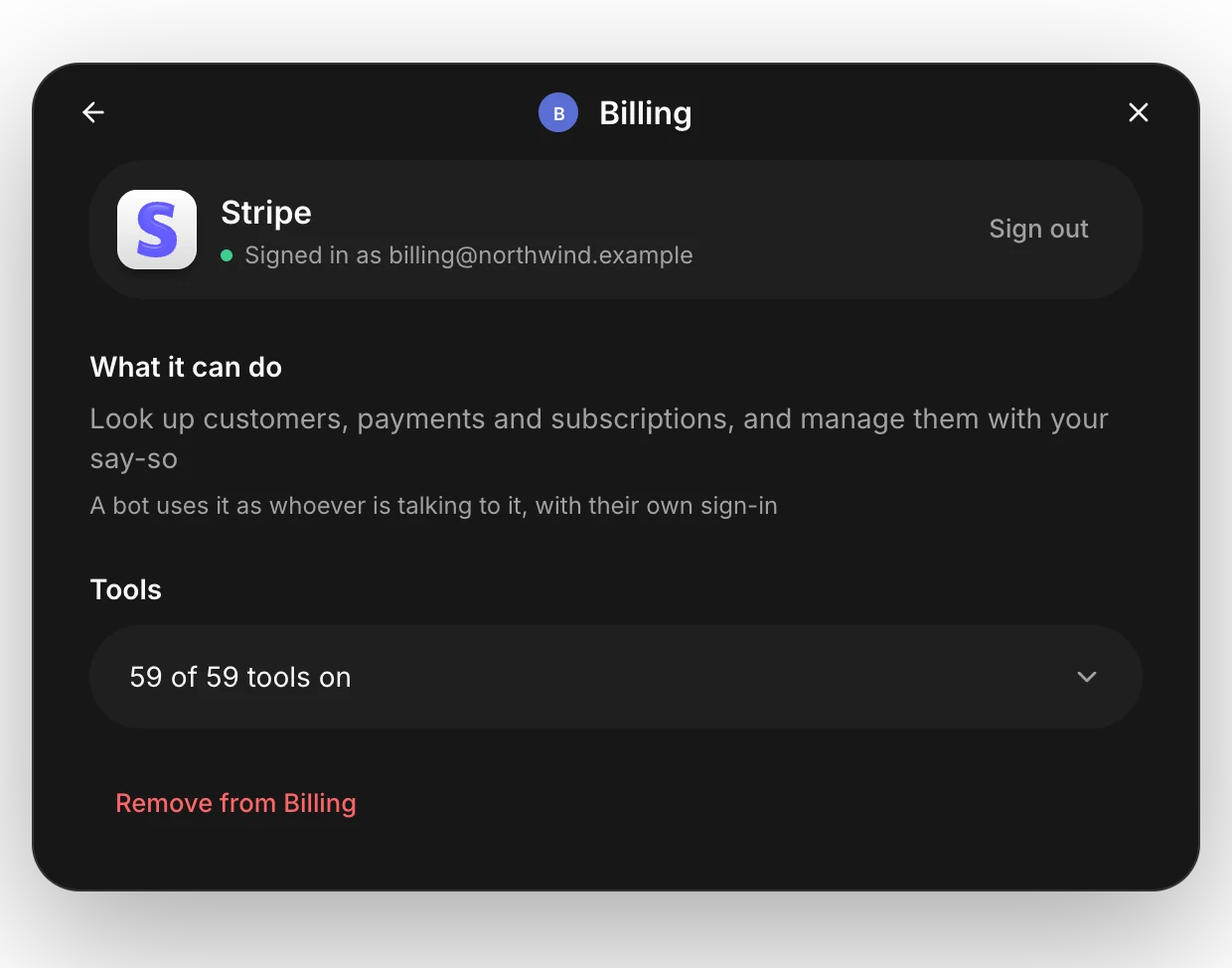
Choose what your bots may do
The card now names the Stripe account you connected. Under Tools, switch off anything you’d rather your bots left alone, and add Stripe to any other bot the same way.
You stay in charge of your account
Your Stripe account is where the money is, so the integration is built to do what you ask and nothing more.
- Each person connects their own Stripe account; nobody borrows yours
- Agents are told to change your account only when you ask for that exact change
- Anything that moves money is marked as such to the agent
- Switch off any action for your own sign-in, on the Stripe card
- Every request that creates or charges carries an idempotency key, so a retry never charges twice
- A routine uses the Stripe account of whoever set it, and nobody else's
- Emra reaches only what you approve on Stripe's install screen
- Sign out in Emra, or uninstall Emra in Stripe, at any time
Questions before you connect
If yours is not here, write to us and a person will answer. Contact us
Do I need an Emra plan?
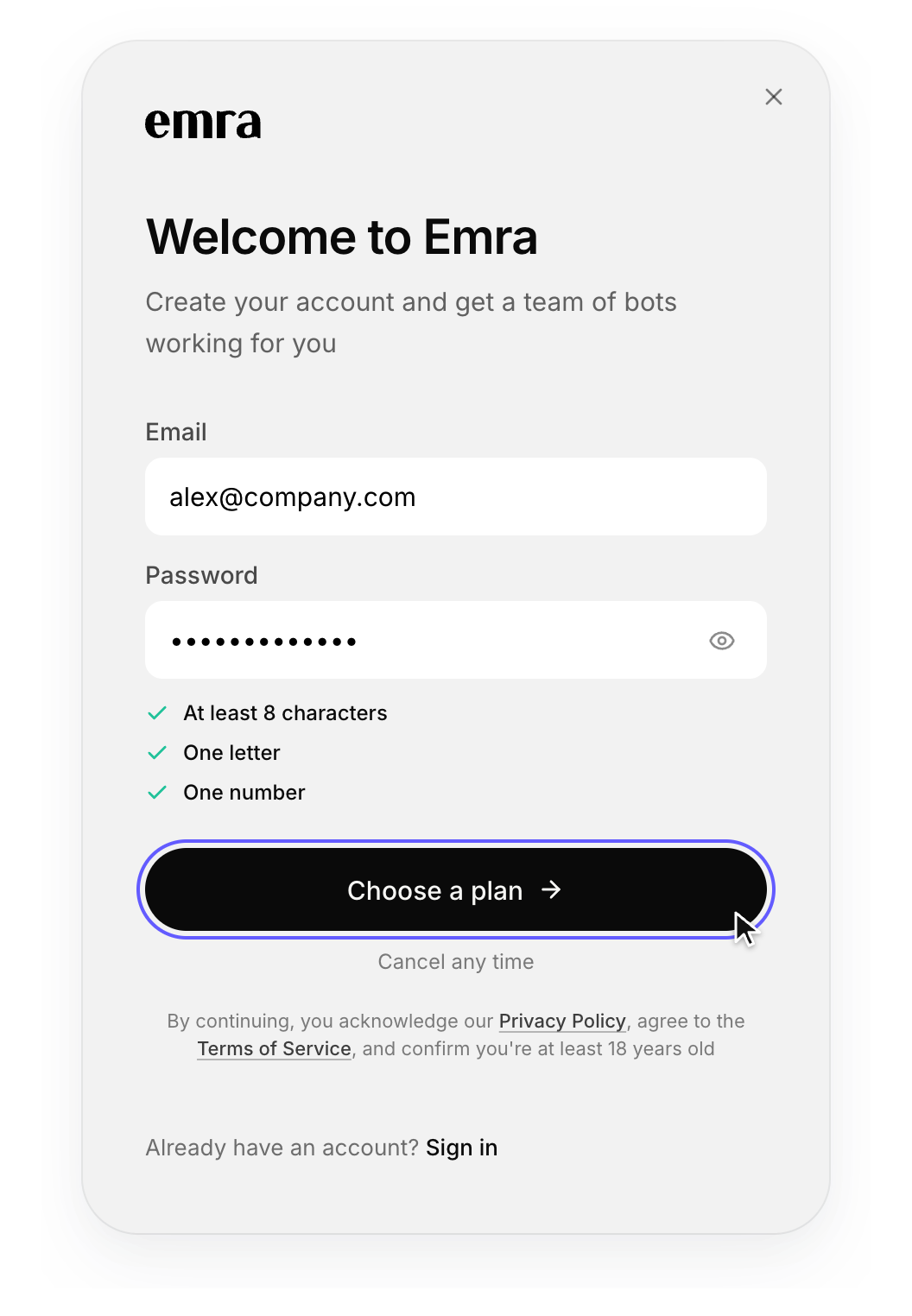
Yes. Emra is a paid workspace for your team, and Stripe is included on every plan at no extra cost. Pick a plan when you create your account.
Which Stripe account does a bot use?
The one connected by the person it is working for. If a teammate asks the same bot, it uses their Stripe connection, or tells them to connect first. It never falls back to someone else's.
Can an agent move money without me?
Agents are told to change your account only when you ask for that exact change, and every tool that moves money or changes what a customer is charged says so. You can also switch those tools off for your connection.
What can Emra see in my account?
Only what you approve on Stripe's install screen: customers, products, prices, subscriptions, invoices, payments, saved payment methods (brand and last four digits), refunds, credit notes and checkout pages, and your account's name and email.
Does it work with test mode or sandboxes?
Not yet. Emra connects to your live account. When you want to try it safely, ask for read-only work first: looking things up changes nothing.
How do I disconnect?
In Emra, open Stripe in a bot’s apps or on the Connections page and click Sign out. To remove the app from Stripe as well, open Settings, then Installed apps, in your Stripe Dashboard and uninstall Emra.
More integrations
See all integrations- BrexLook up expenses, receipts, bills, cards and travel
- MercuryLook at your Mercury accounts, spend and transactions
- GmailSend mail as you
- SlackSearch, read and post in your channels and DMs, as you
- NotionSearch, read and write your pages, databases and comments, in your name
- GitHubRead and change the repositories, issues and pull requests you work in